
PIONEER DJ · CDJ-3000 · REPAIR GUIDE
CDJ-3000 rekordbox Tracks Not Loading – USB Export and Library Fixes
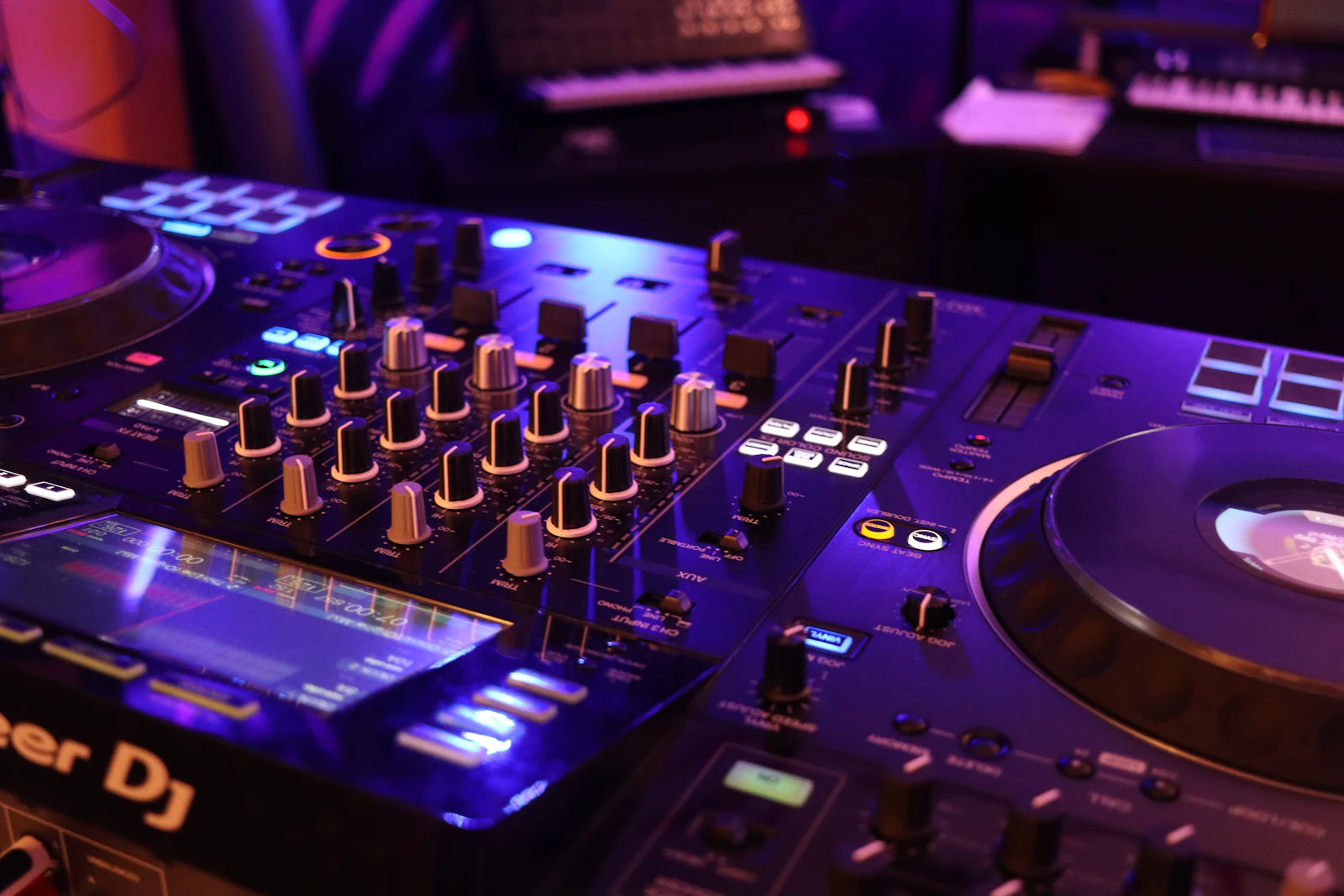
There are few worse moments in a booth than a USB drive that the Pioneer DJ CDJ-3000 will not read, or tracks that will not load. Most of the time the player is fine and the problem is the drive, its format or the rekordbox export.
This guide explains the most common causes, based on the CDJ-3000 instruction manual, and how to tell when the player itself needs attention.
IDENTIFY THE FAULT
Common symptoms
- The USB drive is not recognised at all.
- The drive shows folders but not your rekordbox playlists.
- Some tracks will not play or show as unsupported.
- Cue points or loops are missing.
- The fault happens on one player but not others.
What causes it
The CDJ-3000 manual lists the supported file systems as FAT16, FAT32 and HFS+, and states that NTFS is not supported. USB devices must be mass storage class, and USB hubs and optical drives cannot be used. A drive in an unsupported format will not be read.
Browsing playlists, search and track filters needs the rekordbox library to be saved on the drive. If it is not, the player shows the drive as folders and tracks instead. Copying files onto a drive by hand rather than exporting them from rekordbox is a common cause.
The manual also lists supported audio formats: MP3, AAC, WAV, AIFF, Apple Lossless and FLAC, within set limits. It warns that some files may not play even in a supported format, and files protected by DRM cannot be played.
Missing cue points or loops can happen if the drive was removed without using USB STOP, or if power was cut while the indicator was blinking.
Folder limits and safe removal
The manual says the player can read folders up to eight levels deep, and shows up to 10,000 folders or files in a folder. Files deeper than eight levels cannot be played. A well-organised rekordbox export avoids this.
Always press and hold USB STOP until the indicator stops blinking before removing a drive. Removing it while data is being written can corrupt the library information and lose cue points.
If one particular drive is unreliable on every player, the drive itself may be failing. Try another drive from a reputable brand.
With Pro DJ Link, a drive in one player can be browsed from another. If a drive works when shared from another player but not when plugged into this one, the USB port on this player is the likely suspect. The manual advises not disconnecting LAN cables while files are being shared, and removing storage devices before unplugging LAN cables.
BEFORE YOU BOOK
Things to check before booking a repair
- Check the drive format is FAT32, FAT16 or HFS+, not NTFS.
- Export the tracks from rekordbox rather than copying them by hand.
- Plug the drive directly into the player, with no hub.
- Try the drive in another player, and another drive in this player.
- Use USB STOP before removing the drive.
- Check the files are a supported format and not DRM-protected.
If every drive fails in one player but works in others, the player’s USB port or its connection may be at fault. That is when a workshop check makes sense.
Before reformatting a drive, back up its contents, as formatting erases everything on it.
If you use an SD card instead of a USB drive, the manual lists SD, SDHC, miniSD and microSD cards with an adapter, up to 32 GB. Check the card type and capacity if a card is not recognised.
Some DJ retailers recommend reliable USB 3.0 drives of 64 GB or smaller from trusted brands for club use. On Windows, formatting a drive larger than 32 GB as FAT32 needs an extra app, which is worth knowing before you start.
WORKSHOP APPROACH
How we repair it
Ned tests the player with known-good drives exported from rekordbox, so drive and export issues are ruled out first.
If the player is at fault, the USB port and its connections are inspected for damage and wear, and a damaged socket is replaced. Firmware is checked, and the SD card slot and Pro DJ Link file sharing are tested too.
After the repair, the player is tested with several drives and formats.
Why repair rather than replace
Most loading problems are fixed without any repair. When the player is at fault, a damaged USB port is a targeted repair on a valuable player.
Diagnosing the cause properly means you only pay for work the player actually needs.
A good habit is to keep two drives exported from rekordbox for every set, from different reputable brands. If one fails or is not read, you have a backup ready, and you can quickly see whether the problem is the drive or the player.
Re-exporting regularly from rekordbox, rather than adding files to a drive by hand, keeps the library information up to date and avoids many of the most common loading problems.
COMMON QUESTIONS
FAQ
Which file systems does the CDJ-3000 support?
The manual lists FAT16, FAT32 and HFS+. NTFS is not supported.
Why can I see folders but not playlists?
The rekordbox library information has not been saved to the drive. Export from rekordbox.
Can I use a USB hub?
No. The manual says hubs are not supported.
For more information about the equipment supported at the workshop, see our audio repairs in Bristol page.
SOUND SOLUTION AUDIO REPAIRS · BRISTOL
Related repair guides: CDJ-3000 Touch Preview and Touch Cue not working and DJM-900NXS2 Pro DJ Link not working.
Need help with your equipment?
Contact Ned with the exact model, a short description of the fault and when it happens, and any recent history such as a spill, drop, move or firmware update. Mention any upcoming booking so the repair can be planned around it.
Related repair guides: CDJ-900, CDJ-850 and XDJ-1000 Jog Wheel Repair · CDJ-2000 Jog Adjust Knob Returning to Zero · CDJ-3000 Jog Wheel Problems · CDJ-2000NXS Jog Adjust Knob Fault